
As an IT manager in a small business, managing Windows 11 updates is essential for keeping devices secure and performing optimally. Regular updates protect against vulnerabilities and ensure systems are equipped with the latest features. This guide outlines best practices to manage updates effectively while minimizing disruptions to your team's productivity.
Why regular updates are crucial for Windows 11
Keeping Windows 11 updated is vital for maintaining security and performance. Updates often include patches for newly discovered vulnerabilities that hackers might exploit. For instance, there have been instances where outdated systems were targeted due to known security flaws. Regular updates minimize the risk of such attacks and ensure your systems run smoothly with the latest features and optimizations.
Prerequisites for managing Windows 11 updates
Before you start managing updates, ensure you have the following:
- Administrative access to all devices.
- A reliable internet connection for downloading updates.
- Backup solutions in place to secure data before updates.
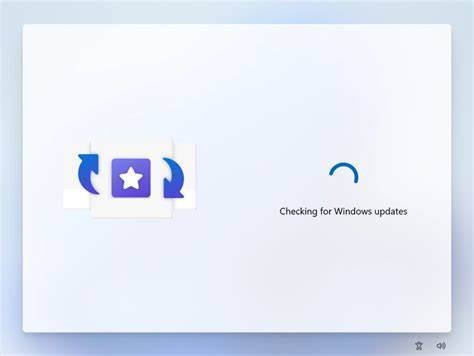
How to check for and install updates manually
To ensure your devices are on the latest version, follow these steps:
- Click on the Start menu.
- Select Settings.
- Click on Windows Update from the left-hand menu.
- Click on Check for updates.
- If updates are available, click Install now.
The system will download and install the updates, prompting you to restart if necessary. This manual check can be done at your convenience to ensure systems are current.
Scheduling updates to avoid downtime
To minimize disruptions during work hours, consider these best practices for scheduling updates:
- Schedule updates for after business hours or during lunch breaks.
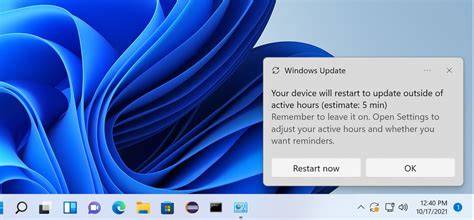
- Use the Active hours feature in Windows 11 to set a time frame when updates should not be installed.
- Communicate scheduled updates to employees, allowing them to save their work beforehand.
By strategically planning updates, you can maintain productivity while ensuring devices remain secure.
Common mistakes in update management
Several common pitfalls can hinder effective update management:
- Ignoring update notifications can leave systems vulnerable; make it a habit to check for updates regularly.
- Failing to back up data before an update can result in lost information if something goes wrong. Always ensure data is backed up before proceeding with installations.
- Relying solely on automatic updates without monitoring can lead to missed important updates. Regularly review update history to confirm that updates have been installed successfully.
Tools to simplify Windows 11 update management
Several tools and features can help streamline the update management process:
- Windows Update settings allow you to configure how and when updates are applied.
- Group Policy Editor (for Pro versions) enables centralized control of update settings across multiple devices.
- Third-party patch management software can automate updates for a fleet of devices, ensuring all systems are consistently up to date.
Utilizing these tools can make it easier to manage updates across your organization.
Conclusion
Start implementing these practices today to enhance your Windows 11 update management. Regularly check for updates, schedule them thoughtfully, and utilize available tools to streamline the process. This proactive approach will help keep your systems secure and running efficiently.