
If you're struggling with insufficient disk space to install Windows updates, there are effective steps you can take to resolve this issue. By checking your current disk usage and removing unnecessary files, you can free up space for updates. This guide will walk you through identifying what’s consuming your disk space and how to clean it up efficiently.
How do I check my current disk space?
To check your current disk space, you can use either File Explorer or the Settings app.
- Open File Explorer by clicking its icon in the taskbar or by pressing
Windows + E. - In the left pane, select This PC. You’ll see a list of drives with a bar indicating how much space is used and how much is free.
- Alternatively, you can check through the Settings app.
- Click on the Start menu, then select Settings (the gear icon).
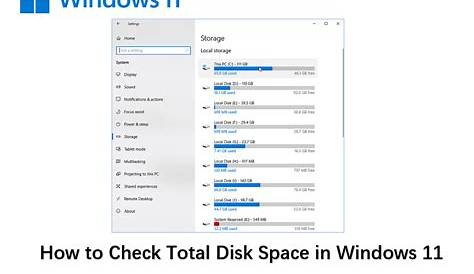
- Go to System and then Storage. Here, you’ll see a breakdown of your storage usage across various categories, helping you identify where space is being consumed.
What files can I safely remove?
There are several types of files you can safely remove to free up disk space without affecting system performance. Consider deleting the following:
- Temporary files: These are created by the system and applications but are no longer needed.
- Old system restore points: While restore points can be helpful, you might have older points that can be deleted.
- Downloaded program files: If you’ve installed software, the installation files may still be present and can be removed.
- Recycle Bin: Emptying the Recycle Bin can also provide a quick way to clear space.
How do I clean up temporary files?
You can use the Disk Cleanup tool to remove temporary files effectively. Here’s how:
- Press
Windows + Sand type Disk Cleanup, then press Enter. - Select the drive you want to clean (usually C:) and click OK.
- The tool will calculate how much space you can free up. Once it’s done, a window will appear with a list of file types.
- Check the boxes for Temporary files, Recycle Bin, and any other categories you want to clean.
- Click OK, then confirm by clicking Delete Files.
You can also access Disk Cleanup by right-clicking on the drive in File Explorer, selecting Properties, and then clicking on Disk Cleanup.
How can I find and remove large programs?
To identify and remove large programs, follow these steps:
- Open the Settings app by clicking the Start menu and selecting Settings.
- Go to Apps, then select Apps & features.
- You’ll see a list of installed applications. Sort them by size by clicking on the Sort by dropdown and selecting Size. This will help you find applications that take up the most space.
- Click on any program you no longer need and select Uninstall. Follow the prompts to remove the application.
Be careful not to uninstall essential programs that your system needs.
How can I prevent future disk space issues?
To avoid running into disk space problems in the future, consider these tips:
- Regularly perform disk cleanup tasks to remove unnecessary files.
- Uninstall programs you no longer use to prevent them from consuming space.
- Use cloud storage solutions like OneDrive or Google Drive to store files instead of keeping them all on your local drive.
- Set your system to automatically delete temporary files after a certain period by adjusting settings in the Storage section of the Settings app.
Conclusion
Now that you know how to manage your disk space effectively, you can proceed with your Windows updates without issues. Regular maintenance will help you avoid running into this problem again. Keep an eye on your disk usage and make cleaning up a habit to keep your system running smoothly.